 Ember Noise
Learning, tips & problem reports
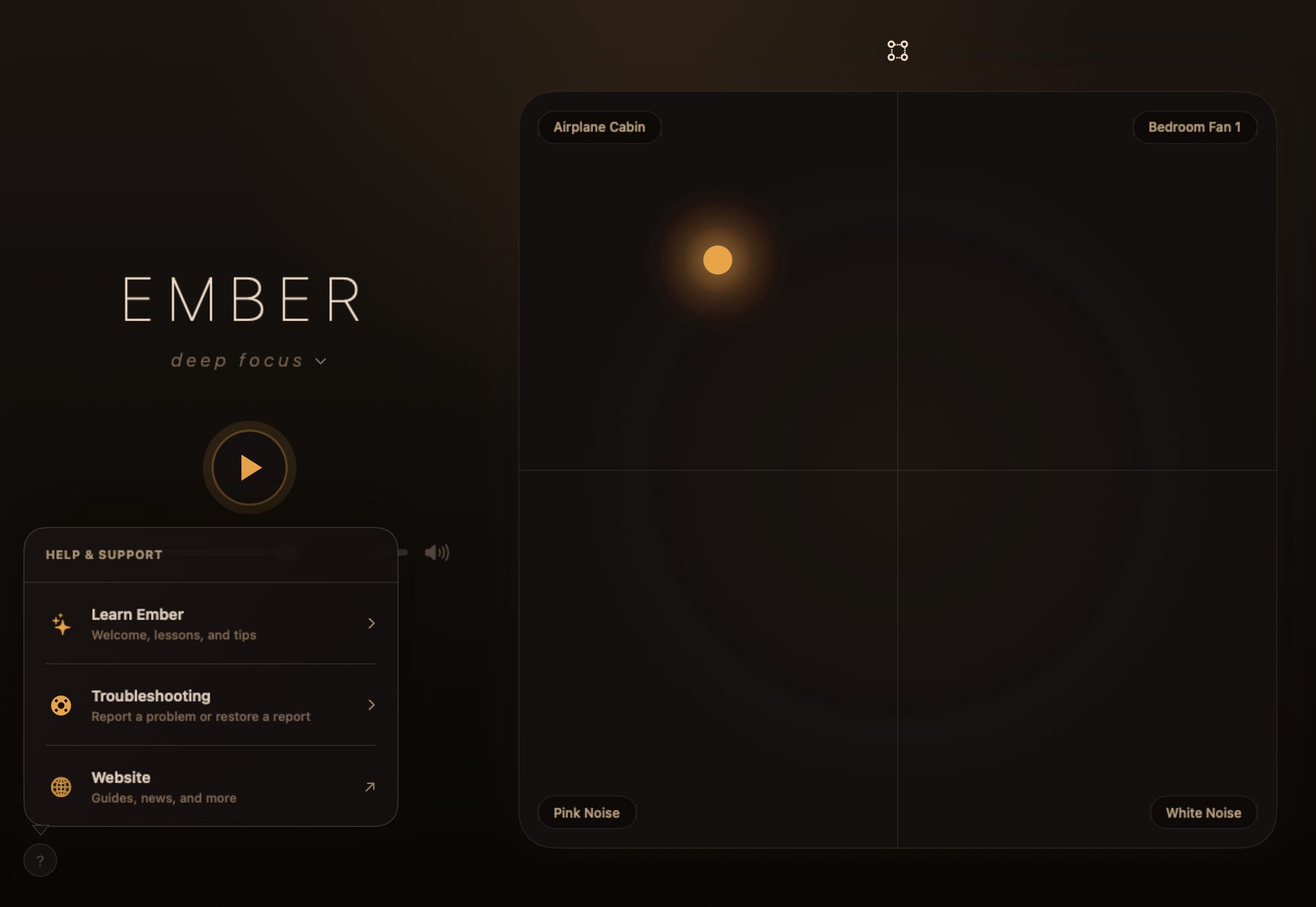
Open the ? help button to find Learn Ember, Tips & Tricks, and Troubleshooting. Learn Ember opens Welcome, the replayable lessons, and tips. On Mac, the native Help menu provides direct commands for Replay Welcome, Lessons, Report a Problem, and Restore from Report.
Welcome and lessons
The eight-step Welcome teaches the shortest path through the app: play, move the ember, change a corner sound, load a preset, and find the lesson library. It appears on first launch and can be skipped or replayed later.
Seven focused lessons remain available on iPhone and iPad whenever you want them:
- Core Mixing: playback, the matrix, and corner sounds.
- Library & Search: filter, favorite, and audition sounds.
- EQ & Shaping: enable EQ, solo-preview a sound, and shape its bands.
- Import & Organize: import audio, organize it, and edit its loop seam.
- Using Presets: load, save, filter, favorite, and tag mixes.
- Automation Editing: draw a path, set its duration and motion, and save it.
- Sleep Timers: create, pin, and cancel a custom timer.
Mac adds an eighth lesson, Menu Bar Companion, covering the popover, volume control, and bringing the full mixer window back.
Lessons place callouts around real controls and track progress as you use them. Your progress remains available if you leave a lesson and return later.
Tips & Tricks
The tips page keeps smaller interactions visible without turning each into a full lesson: double-tap to reset an EQ control, hold to audition a sound or automation waypoint, read the preset’s unsaved-change marker, pin a timer, and understand the timer’s 10-second fade. Mac also explains that closing the mixer leaves playback running in the menu bar.
Report a Problem
? → Troubleshooting → Report a Problem prepares a readable report on your device. It can include app and OS versions, layout and accessibility state, audio readiness and route information, the current mixer configuration, and recent diagnostics. The report excludes imported audio.
Review the disclosure and report before taking any action. Older iPhone and iPad versions use the system mail composer; older Mac versions open an email draft. Copy and Share are also available. You choose whether the report leaves the device, and you can also contact support@embernoise.com directly.
Direct submission
In Apple app versions with direct reporting, Send Report uploads the report without opening an email app. Your reply email is optional. The reference number confirms that the report has been saved, even if the support email notification is delayed. If sending fails, retry from the form; unchanged retries reuse the same submission ID. Other options contains Copy Report and Share Report. You can attach up to three screenshots from files, Photos on iPhone or iPad, or the clipboard using Paste. On Mac, you can also paste an image with ⌘V in the report form. Select a thumbnail to preview it, or choose Remove. Images are resized and re-encoded without their original image metadata. Nothing is uploaded until you choose Send Report. Failed sends preserve the attachments for retry; Copy and Share export the report text only.
Older versions retain their email-based reporting controls.